Since the support for container apps as private link enabled origins for azure front door in GA. I took a look at how easy it is to get started using it. The announcement can be found here.
I followed this easy guide and this is what I learned from setting it up in the Azure portal.
- The private endpoint is not visible in the standard Azure Private Endpoint overview. It appears to exist solely within the context of Azure Front Door and is not listed independently elsewhere in the portal.
- The default origin configuration does not enable HTTPS by default. This must be manually configured after the deployment is complete.


- By default, load balancing is configured to use a round-robin strategy with a latency sensitivity of 50. If you want to prioritize the fastest route to the backend, you’ll need to adjust the latency settings within the origin group configuration.
- It’s important to note that redundancy is not provided out of the box. Be sure to review the documentation carefully to get the redundancy you need for your application. To have redundancy in case the regional cluster is not reachable, it is recommended to configure multiple origins (each with a different Private Link region) under the same AFD origin group.
- be aware that using managed identities for authentication to origins is not supported when Private Link is enabled.
- Getting started was much easier than expected. I encourage you to dive in: build a proof of concept, experiment, make mistakes, and iterate. It’s a great way to learn. I got everything up and running first try for this.
This is what I did
- Created the container apps with public network access disabled.
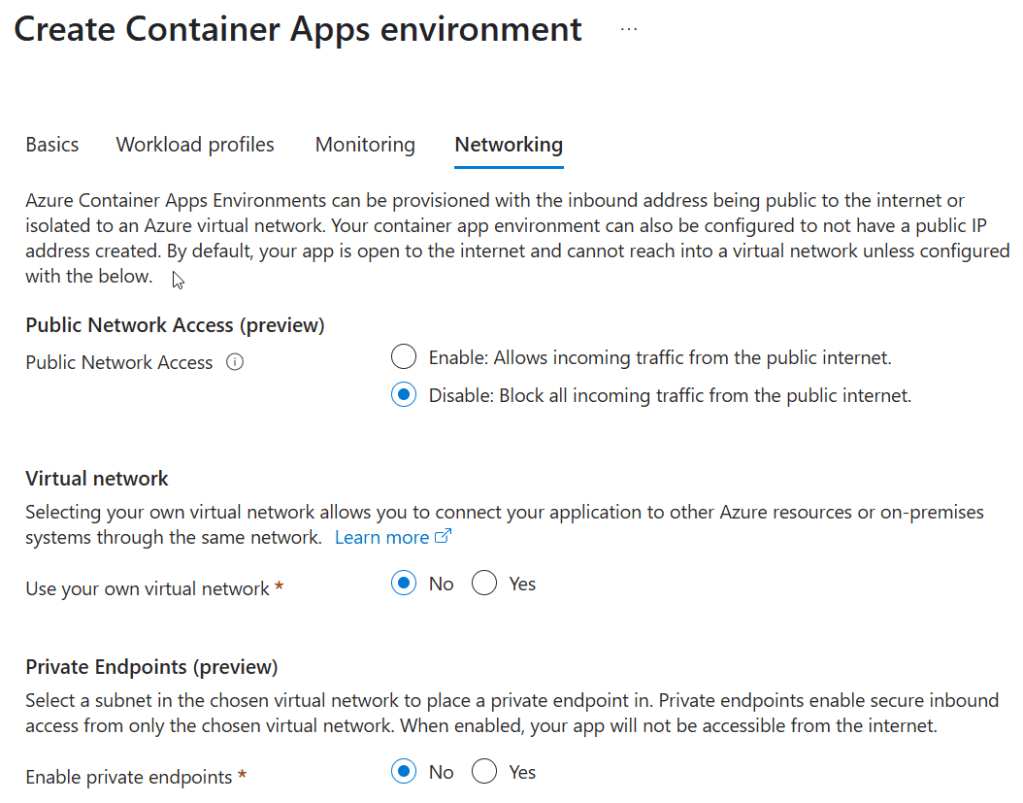
- Verified that the container was not accessible. You should get a text looking somthing like this: The public network access on this managed environment is disabled. To connect to this managed environment, please use the Private Endpoint from inside your virtual network. To learn more https://aka.ms/PrivateEndpointTroubleshooting.
- Created the Front Door with premium SKU and quick start deployment. In the configuration I selected private endpoint and the container apps as endpoint.
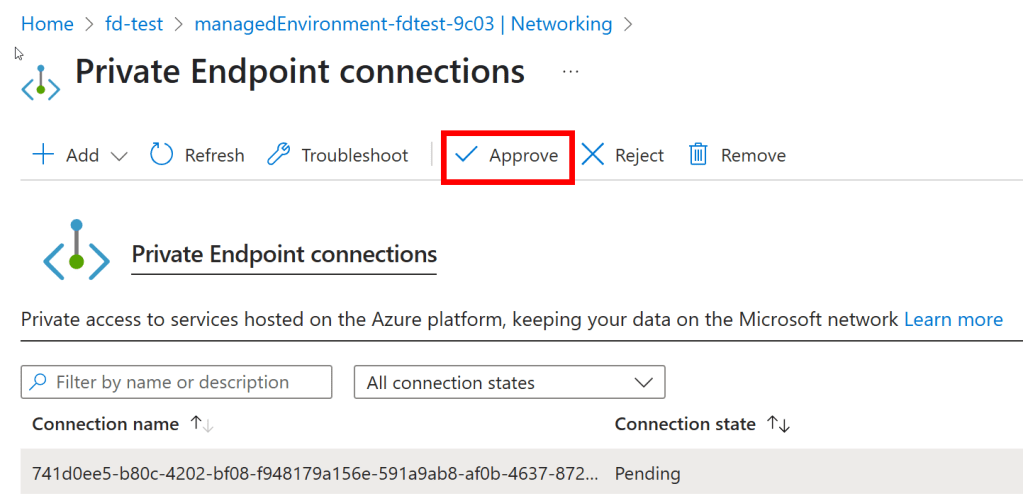
- To ensure that the endpoint is configured you need to approve the endpoint in the container app environment.

- Approved the private endpoint the application was up and running.
- The container is not available

 Håvard Løkensgard
Legg igjen en kommentar